
Here’s a summary of the 8 things you should try first in macOS Sequoia:
1. Built-in Passwords App
- No need for third-party password managers anymore.
- Stores passwords, passkeys, verification codes, and Wi-Fi passwords.
- Generate QR codes for Wi-Fi networks with one click.
- Enable “Show passwords in menu bar” for quick access and recommended logins.
2. Calendar and Reminders Integration
- Drag and drop emails and tasks into the calendar to create events or reminders.
- Manage reminders directly within the calendar.
- This integration improves task scheduling and time management.
3. New Focus Mode: Reduce Interruptions
- A new AI-powered Focus mode that silences notifications but can intelligently allow urgent messages to come through.
- Adjust notifications from specific people or apps, with AI determining when an exception should be made.
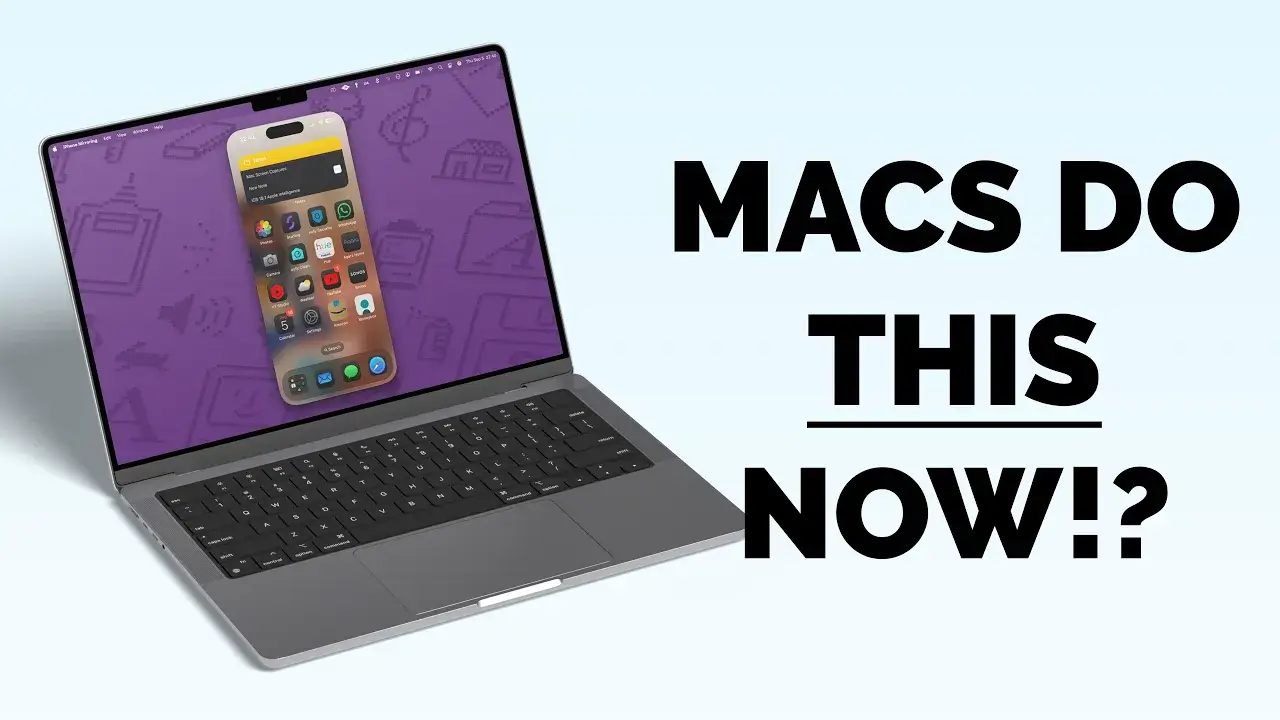
4. iPhone Mirroring
- View and control your iPhone on your Mac screen through Apple’s continuity features.
- Use iPhone-only apps (e.g., banking or security apps) directly on your Mac.
- Respond to notifications (e.g., doorbell or security alerts) without switching devices.
5. Safari: Hide Distracting Items & Summarize Articles
- Hide distracting elements on web pages by clicking on them to remove them temporarily.
- Use the Summarize feature (powered by AI) in Reader mode to get article summaries.
- Ideal for focused reading or presentations.
6. Calculator with Enhanced Conversion Mode
- Access conversion mode by pressing
Command + Option + C. - Convert between units like currency, speed, pressure, and more.
- Perform real-time currency conversions with updated rates and even apply calculations (e.g., “2500 – 15%”).
7. Native Screen Snapping
- Replace apps like Magnet or Rectangle with built-in screen snapping:
- Hover over the green Traffic Light icon on an app to move or arrange windows.
- Use
Option + dragto quickly tile windows into place. - Customize window snapping behavior under System Settings > Desktop & Dock.
8. Notes App Upgrades
- Record audio directly into Notes, and transcripts get auto-generated.
- Use AI features (if available) to summarize, extract key points, or rewrite text.
- Perform calculations within notes for real-time answers.
- Collapsible headings make organizing notes easier.
These 8 features enhance productivity, integration, and usability, giving macOS Sequoia a more efficient and seamless user experience.