
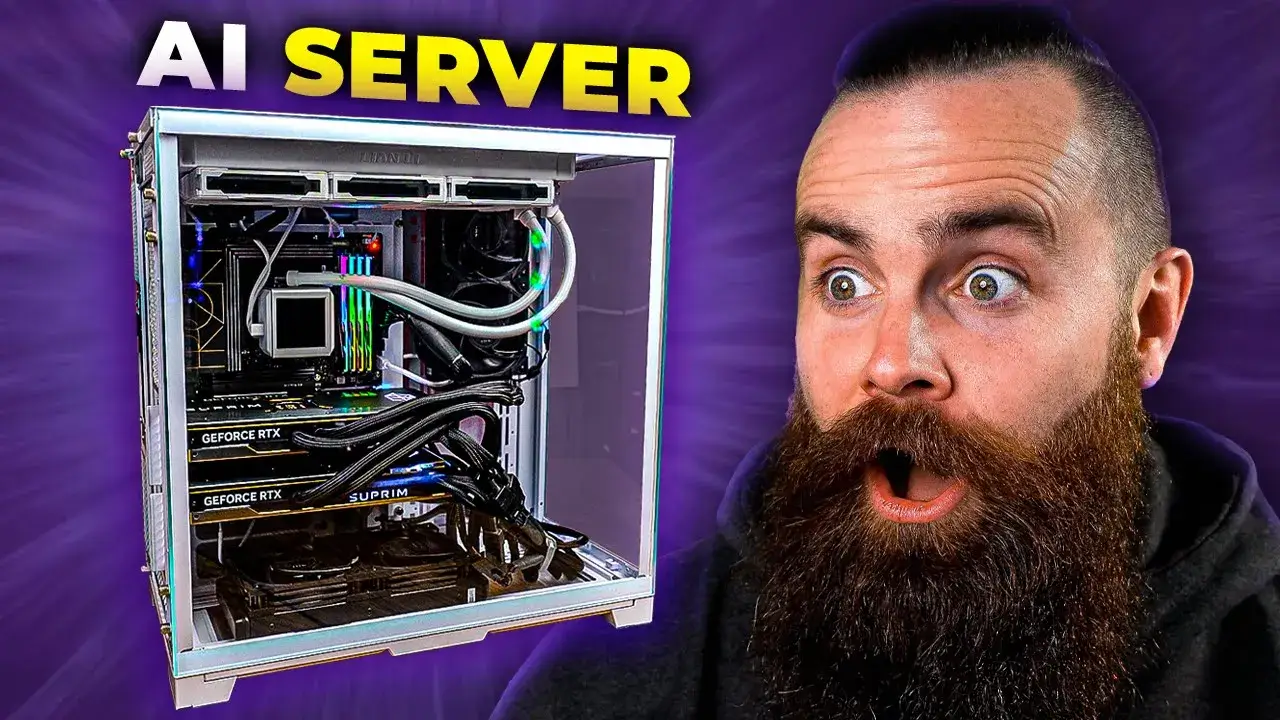
To host your AI locally using something like Ollama, here’s a breakdown of the steps from the transcript:
1. Hardware Requirements
- You don’t need a super-powerful machine like the AI server called “Terry” that was built in the transcript. A regular laptop or desktop running Windows, Mac, or Linux should suffice.
- If you have a GPU, it will significantly improve performance, especially when handling large models like Llama 2.
2. Install Ollama
Ollama is the foundation for running AI models locally.
- For Mac Users:
- Head over to Ollama and download the Mac version, then install it like any regular app.
- For Windows Users:
- You’ll need Windows Subsystem for Linux (WSL). Here’s how to set it up:
- Open Windows Terminal by searching for it in the start menu.
- Install WSL by running the following command:
wsl --install - Once installed, set up Ubuntu 22.04 LTS and update your system:
sudo apt update && sudo apt upgrade -y - Install Ollama on Ubuntu using the following command:
curl https://ollama.ai/install.sh | bash - Mac, Linux, and Windows users will now be on the same track.
3. Download an AI Model
- To use Llama 2, download it using Ollama:
ollama pull llama2
4. Run the AI Model
- Once installed, you can run the model with:
ollama run llama2 - The model will now be ready to answer questions entirely offline, on your own machine.
5. Interact with the Model
- Open a new browser window and type
localhost:11434in the address bar. This will connect you to Ollama’s API service running locally. - You can start interacting with the AI by typing in questions or prompts in your terminal, like:
What is a pug?
6. Expand Functionality with a Web Interface
- You can add a graphical user interface (GUI) for easier interaction by setting up Open Web UI, which provides a beautiful chat interface and additional features like chat history and the ability to switch between multiple models.
- This requires Docker to be installed:
- Install Docker by running the following commands:
sudo apt update sudo apt install docker.io - Run Open Web UI with Docker:
sudo docker run -d --network=host -e BASE_URL=http://localhost:11434 -p 8080:8080 openwebui/openwebui - Open your browser and go to
localhost:8080to access the web interface.
- Install Docker by running the following commands:
7. Add Multiple AI Models
- Ollama allows you to pull and use multiple models. For example, to add Code Llama:
ollama pull codellama - Switch between models in the Open Web UI interface to try different AI models based on your needs.
8. Control and Customize
- The web interface allows you to add restrictions, such as limiting which models can be used, monitoring users (if it’s shared), and even creating tailored models with specific behavior (e.g., limiting how the AI responds to your kids’ questions).
9. Image Generation with Stable Diffusion
- If you want to generate images locally, you can integrate Stable Diffusion using Docker and the Automatic 1111 interface:
- Follow the setup for Stable Diffusion by installing necessary prerequisites and dependencies.
- Run the Stable Diffusion Docker container and connect it with Open Web UI to generate images directly from prompts.
By following these steps, you can run powerful AI models, including chatbots and image generators, entirely on your local machine without relying on external servers. The best part is that all data remains private and fully under your control.