
https://levelup.gitconnected.com/top-5-html-features-youre-not-using-but-should-be-73f8544c2116
ONE SENTENCE SUMMARY:
The content outlines that the training data available extends until October 2023.
MAIN POINTS:
- Training data encompasses a wide range of topics.
- Information is accurate only up to October 2023.
- Updates or new developments post-October are not included.
- The model’s knowledge is static after the cutoff date.
- Users should verify information from other sources for recent updates.
- Historical context can be provided based on available data.
- The model can assist in various subjects using existing knowledge.
- Limitations exist due to the fixed training timeline.
- Continuous learning is necessary for keeping up with changes.
- The model remains a valuable resource for pre-October knowledge.
TAKEAWAYS:
- Be aware of the training cutoff for accuracy.
- Always cross-check facts with up-to-date resources.
- Understand the static nature of the model’s knowledge.
- Utilize the model for insights on historical data.
- Acknowledge the importance of ongoing education and updates.
Top 5 HTML Features You’re Not Using (But Should Be)
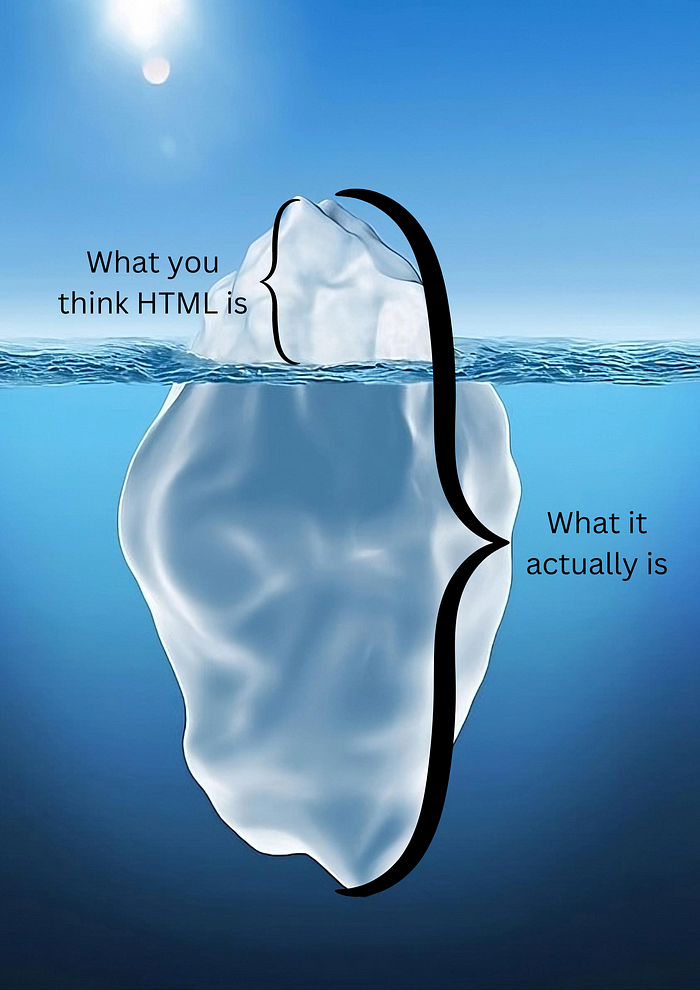
HTML is THE tool for creating web pages. It offers a wide range of functions and a clear structure.
However, many of these features have been overlooked by developers, even though they can greatly enhance both web development efficiency and user experience.
But in this article, I’ll show you the rest of the iceberg and what HTML is capable of.
Let’s dive in!
The <template> Element
The <template> element is one of those hidden gems in HTML5 that many developers haven’t fully explored.
Without any need for frameworks like React, it serves as a container for holding HTML content that isn’t rendered on the page immediately. Instead, this content can be cloned and inserted into the DOM later, usually via JavaScript.
It’s ideal for scenarios where you need to render content dynamically, like in single-page applications (SPAs) or when you components that get reused multiple times.
Here is how it works:
<template id="card-template">
    <div class="card">
        <img src="" alt="Image" class="card-img">
        <p class="card-text"></p>
    </div>
</template>


<script>    const template = document.getElementById('card-template');
    const clone = template.content.cloneNode(true);
    clone.querySelector('.card-img').src = 'image.jpg';
    clone.querySelector('.card-text').textContent = 'This is a dynamic card!';
    document.body.appendChild(clone);
</script>
In this example, we have used the <template> element to create a reusable card component that can be easily cloned and customized with JavaScript.
The <picture> Element for Responsive Images
The <picture>element is designed to help developers display different images based on different conditions, such as screen size or resolution.
This feature makes media queries in CSS almost obsolete.
Here’s how you can implement the **<picture>** element:
<picture>
    <source srcset="image-small.jpg" media="(max-width: 600px)">
    <source srcset="image-large.jpg" media="(min-width: 601px)">
    <img src="image-default.jpg" alt="Responsive Image">
</picture>
In this example, we’ve defined different image sources for different screen sizes, ensuring that the appropriate image is loaded depending on the user’s device.
The <datalist> Element for Enhanced Input Fields
The <datalist> element is a great addition to HTML5, providing a way to offer predefined options within an input field.
It creates a drop-down list of suggestions that users can choose from, making forms more interactive and user-friendly.
Let’s see how to use the **<datalist>** element in a search input field:
<label for="search">Search:</label>
<input list="suggestions" id="search" name="search">
<datalist id="suggestions">
    <option value="HTML5">
    <option value="CSS3">
    <option value="JavaScript">
    <option value="React">
</datalist>
Form Validation with HTML5 Attributes
HTML5 has introduced built-in form validation attributes such as required, pattern, minlength, and maxlength.
These attributes have allowed you to enforce input rules directly in the HTML, reducing the need for complex JavaScript validation.
Here’s an example of a form with HTML5 validation:
<form>
    <label for="username">Username:</label>
    <input type="text" id="username" name="username" required minlength="4" maxlength="20">

    <label for="email">Email:</label>
    <input type="email" id="email" name="email" required pattern="[a-z0-9._%+-]+@[a-z0-9.-]+\.[a-z]{2,}$">

    <input type="submit" value="Submit">
</form>
The <output> Element for Displaying Calculation Results
The <output> element is a great tool in HTML5 for displaying the results of calculations or user actions.
It’s particularly useful in interactive forms or web applications where you want to show immediate feedback without relying on JavaScript.
Here’s how the <output> element can be used:
<form oninput="result.value=parseInt(a.value)+parseInt(b.value)">
    <input type="number" id="a" value="50"> +
    <input type="number" id="b" value="100">
    = <output name="result" for="a b">150</output>
</form>
In this example, the <output> element has displayed the sum of two numbers in real-time.

Photo by Ben White on Unsplash
If this article was helpful and surprised you with the power that HTML truly has, let me know in the comments.
Happy coding!